
Tap and Filter: Filtering in Wireshark
How to use Wireshark display filters and become a Wireshark power user.

Hello internet, several readers of my last post said they found the intro to Wireshark post (my last one) to be very insightful. That was a big motivation to keep the Wireshark series going. I am excited to write this second post on filtering in Wireshark.
Filtering in Wireshark is very important. Filtering in Wireshark is essential, especially in very large network environments, to get a better picture of traffic coming from key and suspicious hosts on a network. Doing this will help you to diagnose problems and see potential misuse or abuse of the network bandwidth.
There are two types of filtering in Wireshark: capture filtering and display filtering. This post will detail both types of filtering.
But before that, if you haven’t seen the first video in my Wireshark series, you can watch it below
What are Capture and Display Filtering
To put it simply, capture filtering is running a filter across a capture before even beginning it. Figure 1 shows an example of a capture filter.
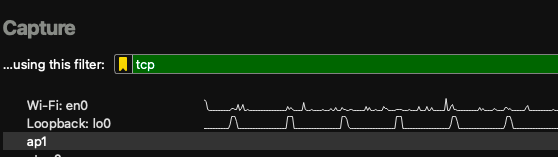
Figure 1: A wireshark capture filter.
Note that Wireshark’s capture filters have some overlap with display filters (to be addressed next) but don’t share all common display filters. For instance, you cannot filter out IP addresses in the same way you can while capuring or displaying a packet capture if you want to start out with capture filters. There is a different syntax that will be discussed later.
Display filters are the nearly the same as the capture filters. The two types of filters, although very similar, have two key distinctions. First capture filters capture only packets of the specified type while display filters maintain the paclet capture’s packets, only showing the packets specified in the filter. Secondly, the display filters are more numerous than the capture filters. This is because, in seeing the capture, an analyst will knoe what they want to look for more easily than when not seeing traffic first.
Common Capture FIlters
When talking about capture filters we first look at the syntax. The syntax looks simpler than that of display filters. For instance, if we want to filter out a certain ip address, we would say:
host [ip_address]
(where ip_address is the IP address you want to see.)
As opposed to:
ip.src == [ip_address] or ip.dst == [ip_address]
This is a much more efficient way at writing an IP source and destination filter.
There is also a way to show only IP addresses in a certain range on a capture. This goes as follows:
(In CIDR notation) net [ip_address]/[mask] (where mask is a subnet mask)
(or with regular subnet mask notation) net [ip_address] mask [subnet_mask_ip_address]
This can also follow either src or dst to get only packets from either a destination or source adddress range.
You can also capture traffic from specific ports by using the port filter. Easy, right?
Beyond combining the ones I just mentioned, there are a few others that you can add. I won’t add information about all of the various ports you could search for traffic on because there are too many to mention. You could find that somewhere else. Although I risk repeating myself, the following image (Figure 2) shows some more filters with what they filter when you are going to form a capture.
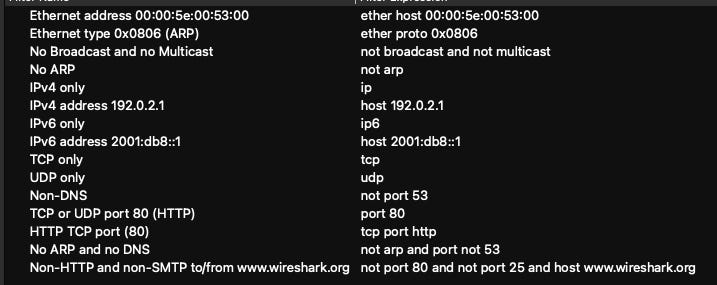
Figure 2: Some common capture filters
If you would like to see these capture filters, you can always go to your top options bar (above the capture options) and click the capture button. Click Capture Filters on the newly spawned options menu.
Display Filters
Display filters are where things get interesting. You can choose to filter displayed packets by many different characteristics. In the following section, I will subdivide the types of packets you can find by their type. This is not an exhaustive list of types of packets or packet filters.
Address Resolution Protocol (ARP)
Address Resolution Protocol (ARP) filters are essential for pinpointing network discovery and MAC-to-IP resolution traffic. To isolate ARP packets by IP format, use arp.dst.proto_ipv4 or arp.src.proto_ipv4. For MAC-level filtering, arp.src.hw_mac and arp.dst.hw_mac help identify source and destination hardware addresses. You can also filter by operation type using arp.opcode, which distinguishes between ARP requests (1) and replies (2). These filters are particularly useful when diagnosing IP conflicts or verifying proper address resolution in local networks.
Border Gateway Protocol (BGP) filters are crucial for analyzing routing behavior across autonomous systems. Filters like bgp.as_path and bgp.community_value allow you to trace route propagation and policy tagging. For route selection insights, bgp.local_pref and bgp.multi_exit_disc reveal preferences and exit strategies. Additionally, bgp.mp_reach_nlri_ipv4_prefix and bgp.mp_unreach_nlri_ipv4_prefix help track advertised and withdrawn IPv4 prefixes in multiprotocol BGP setups. These filters are indispensable for forensic analysts working in ISP environments or investigating routing anomalies.
Transmission Control Protocol (TCP) filters are among the most frequently used in Wireshark due to their relevance in diagnosing connection issues and application behavior. You can use tcp.port == 80 to isolate HTTP traffic or tcp.flags.syn == 1 to detect SYN packets that initiate TCP handshakes. For troubleshooting retransmissions or latency, tcp.analysis.retransmission and tcp.analysis.flags are invaluable. These filters help identify performance bottlenecks, dropped packets, and congestion-related anomalies. Additionally, tcp.window_size and tcp.seq offer insights into flow control and sequence tracking, which are critical for forensic analysis and debugging.
Hypertext Transfer Protocol (HTTP) filters are essential for inspecting web traffic. Use http.request to view all HTTP requests and http.response.code == 404 to find failed page loads. For deeper inspection, http.host filters by the requested domain, and http.request.method == "POST" helps identify form submissions or API calls. These filters are particularly useful when investigating suspicious web activity, such as data exfiltration or unauthorized access attempts. You can also use http.content_type to isolate specific types of content, like JSON or HTML, which is helpful when analyzing RESTful APIs or web services.
Internet Control Message Protocol (ICMP) filters are useful for diagnosing network reachability and error reporting. The filter icmp.type == 8 identifies echo requests (pings), while icmp.type == 0 captures echo replies. For more advanced diagnostics, icmp.code can be used to pinpoint specific error conditions, such as unreachable hosts or ports. These filters are especially helpful when verifying connectivity between endpoints or identifying misconfigured routing. ICMP traffic often serves as an early indicator of network issues, making these filters a staple in any analyst’s toolkit.
There are s plethora of filters that you can use that I did not mention here. If you would like to refer to them, you can visit sites like this one and look at their resources.
Conclusion
As you have probably noticed, Wireshark is a very powerful tool. It can capture traffic from your network and you can filter it down to see exactly what you want and when these events happened. You can also start off by specifying what you want to see and go from there without any fluff and time-wasting traffic. This is especially helpful for large environments that generate data at a grand scale — if one can filter data to only a small subset, the desired data is more likely found.
I am certain that this tool will be very helpful to some of you and a great thing for others to learn. Thank you all for reading and I hope you will read the next post I have coming. The next post will be about decrypting encrypted traffic in Wireshark. I hope you will join me for that one! Until next time, this has been Matthew of FDorensics With Matt, talking to you about Wireshar'k’s display filters. Until next time, Matt OUT!
Other Popular Posts:
Wireshark: Your Trusty Internet Wiretap