
Next Time, Filter Less (with NextDNS)
How I set up NextDNS for filtering and blocking sites.

Hello Internet, it’s Matt from Forensics with Matt. In today’s post I will be talking about how I set up DNS filtering and site blocking with NextDNS. This is a simple process and I will take you through it. The first thing I will mention is the reasons for doing this.
Why I Used NextDNS for Filtering and Blocking
A few months ago, I watched a video from Techlore that mentioned NextDNS as an alternative for an ad blocker. Because I have some devices that are not computers, I can’t always use an ad blocker like uBlock Origin to silence the ads. Sometimes, like in certain apps that have ads, I will have to use a DNS filter to block the ads and only see the content I want to see.
I decited to use NextDNS to test its ability to block ads and lots of other sites that I don’t want to see. The following sections are going to discuss how I set up my account and set up the filtering actions and end off on talking about how I ported the filtering over to my computer.
NextDNS Account Setup
The setup of a NextDNS account is super simple. All that you have to do is give it an email address and a password.
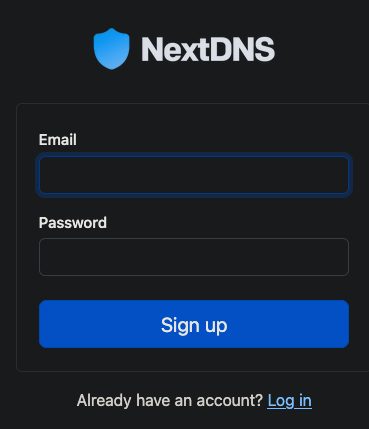
Once you do that, you are taken to an overview page. that shares the information on how to connect to your servew and an area for downloading profiles for the devices which need that to be done. In my case, I am working on a Mac, so this will default to showing profile downloads for a Mac. I’ll go into the process of profile downloads later, after I talk about the profile that I created.
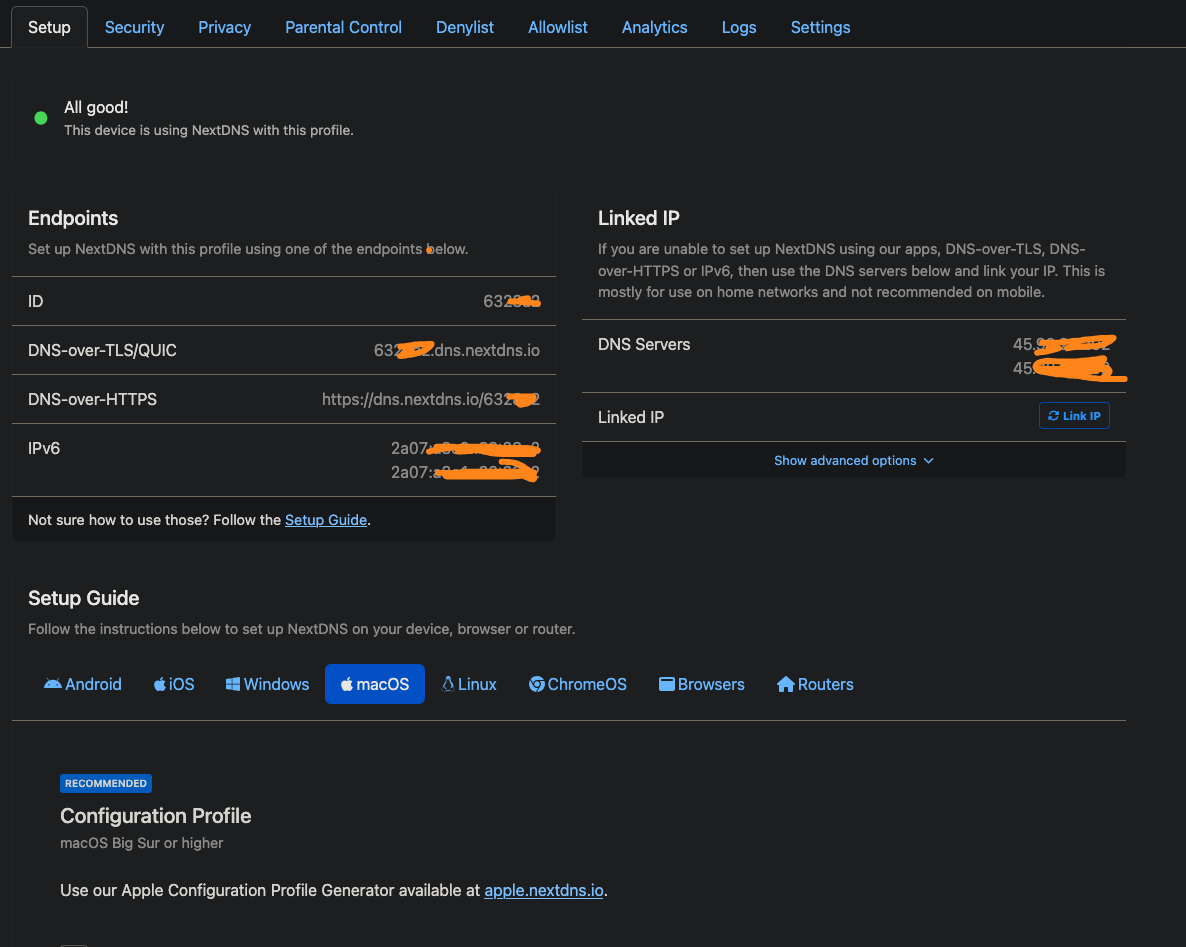
Figure 2: The main page
Security Settings
I will now go over some of the notable security settings that I either turned on or off.
Use Threat Intelligence Feeds: ON. I wanted the setup to always have an updated set of rules for blocking sites that host malware or bad things that will compromise the data in my computer.
Cryptojacking Protection: ON. Same as above. I don’t want my passwords stolen.
Typosquatting Attack Prevention: ON. I don’t want to lese data to sites that I mistype the name of an intended site and get to a malicious one.
Block CSAM: ON. CSAM is usually illegal. I don’t want to be looking at that.
Block Newly Registered Domains: OFF. I ight find a site that is good but the domain was registered a couple of weeks ago. I don’t know if this setting would block that site, thereby making me not able to find it.
These were just some of the security settings that NextDNS has on its dashboard. There are many other ones, but I don’t think it’s necessary to share all of them. The fun parts are coming up next the privacy and parental controls.
Privacy Settings
In the privacy settings area, one is able to find blocklists similar to those of the ad blocking extensions on browsers. This area also has options for native tracking protection and and allowing affilliate trackers and blocking disguised third party trackers.I left on both settings for affilliate and tracking links and block disguised third party trackers.
When it came to the blocklists, I decided to use a lot of them. I used many options that are updated frequently and some others that haven’t been updated as frequently. As of writing this article, a majority of the lists I added were updated within a week of Monday June 23, 2025. The ones that weren’t uptated as frwquently, such as the intel tracker blocklist (NSA,, CIA, GCHQ, FBI, etc.) which was updated in 2020.
The blocklists predominately featured lists from NextDNS, Easy List, AdGuard, and third party ones. I was surpirised to see that many of my lists had five or six figures of entries. This means that there is alot of ads. trackers, and unwanted things out there and the writers of these lists are doing a thorough job at finding and documenting those things.
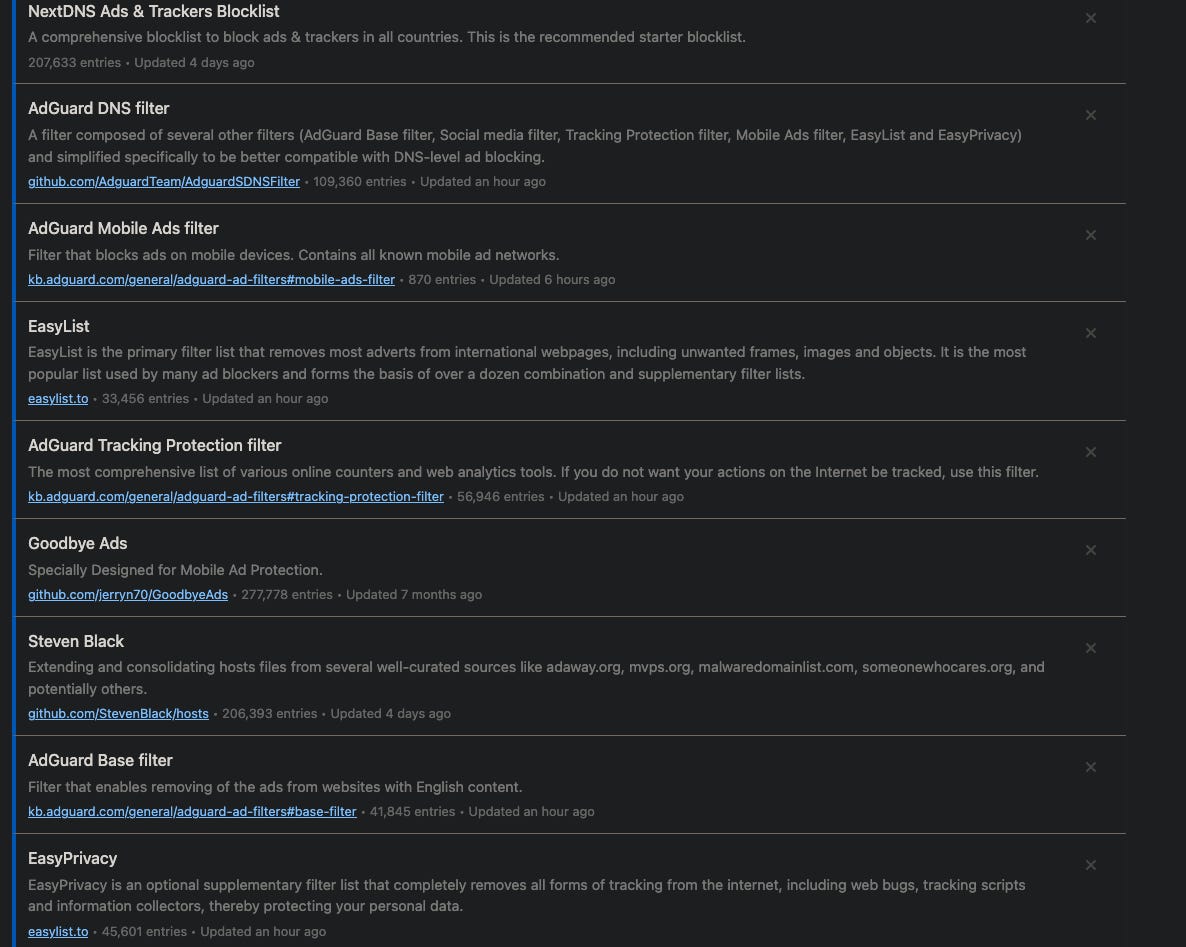
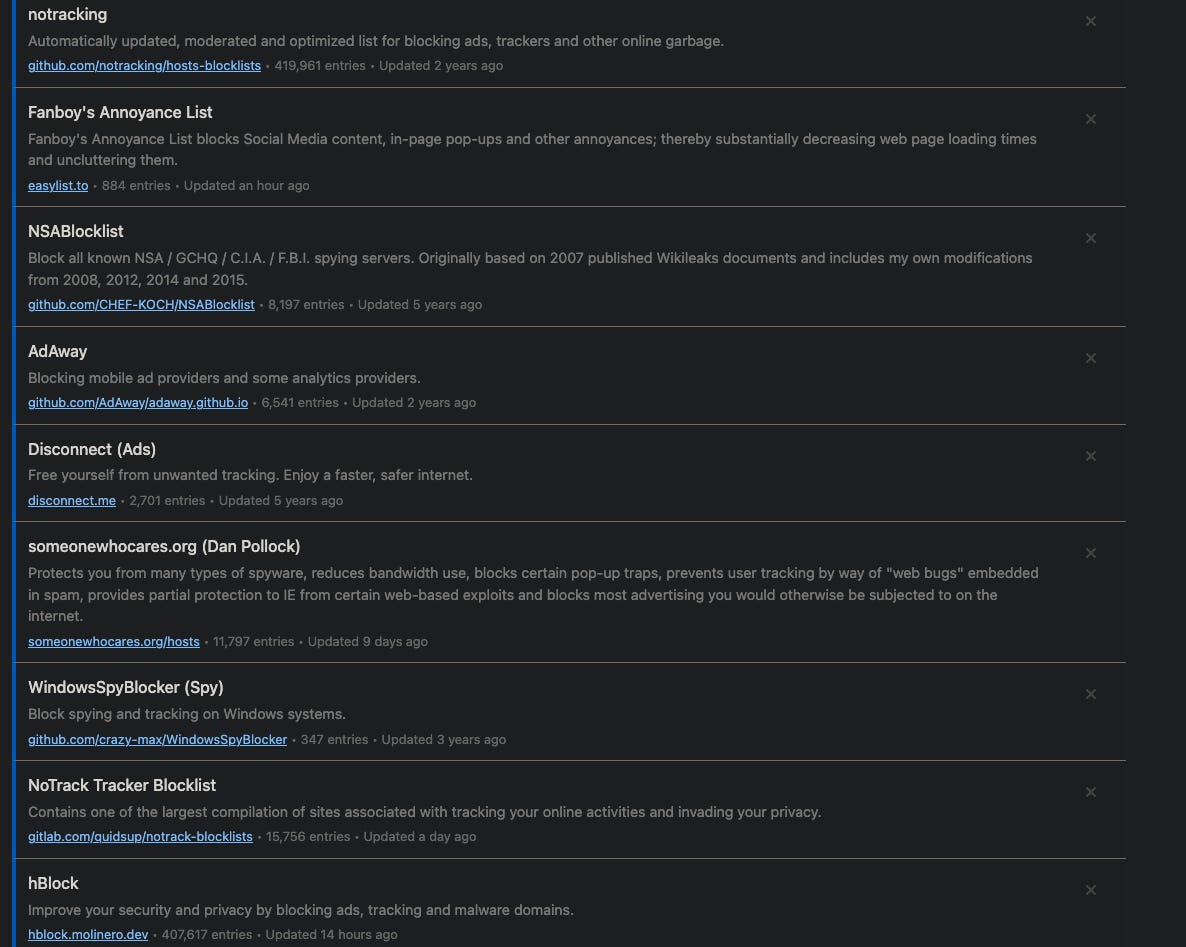
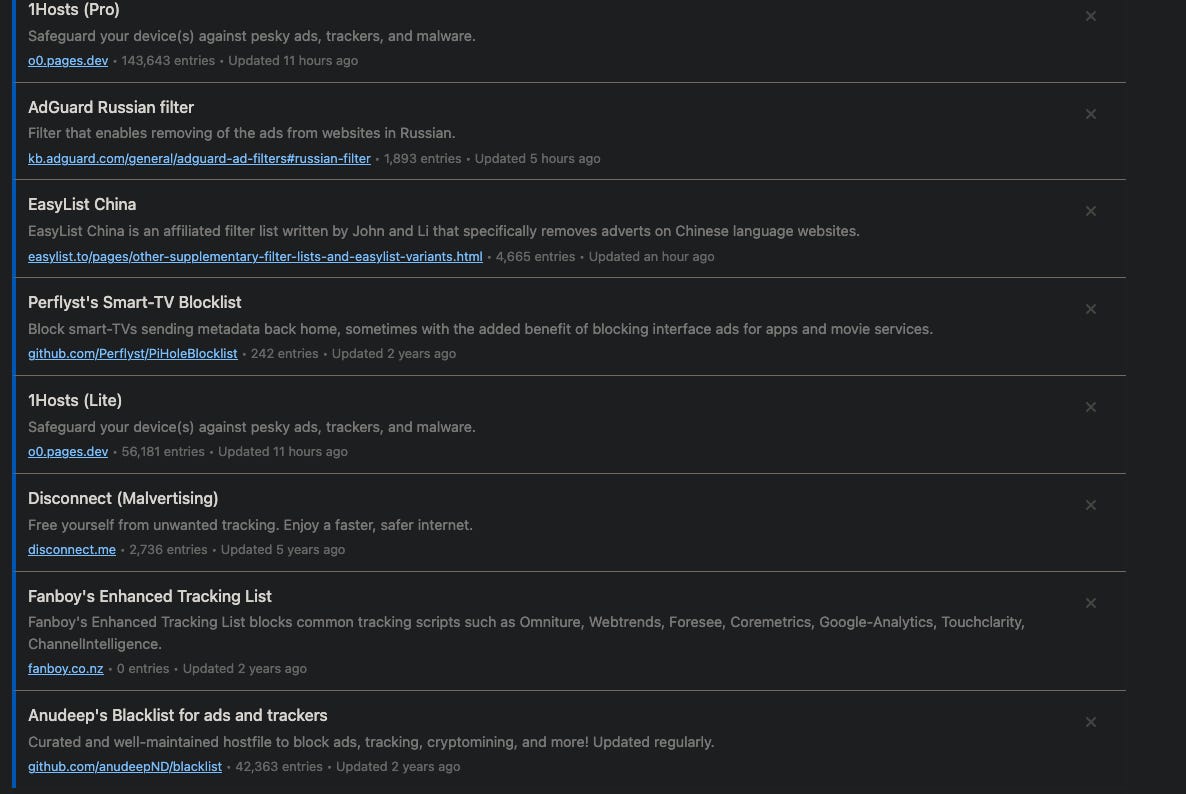
Figure 3: All of the Blocklists that I chose to use
As you can see, there is a wide variety of lists that I am using and a wide variety of domains that would fall under these lists. Next area of business is the Parental Control settings.
Parental Controls
This is an area which I could easily have skipped, however it wasn’t. Since I not only want to be free from many distracting sites and also deploy this on a network at some point, I added the parental controls. The following options are the ones I selected:
I blocked porn, gambling, online gaming, and dating sites so that those distractions won’t be available for me or anyone on the network.
I blocked 9GAG, League of Legends, Tumblr, TikTok, VK, and Tinder just to test.
I kept SafeSearch (Strict) and YouTube Restricted mode OFF and turned ON Block Bypass methods. I did this to test if it really blocked under Tor browsing. It, in fact, did block.
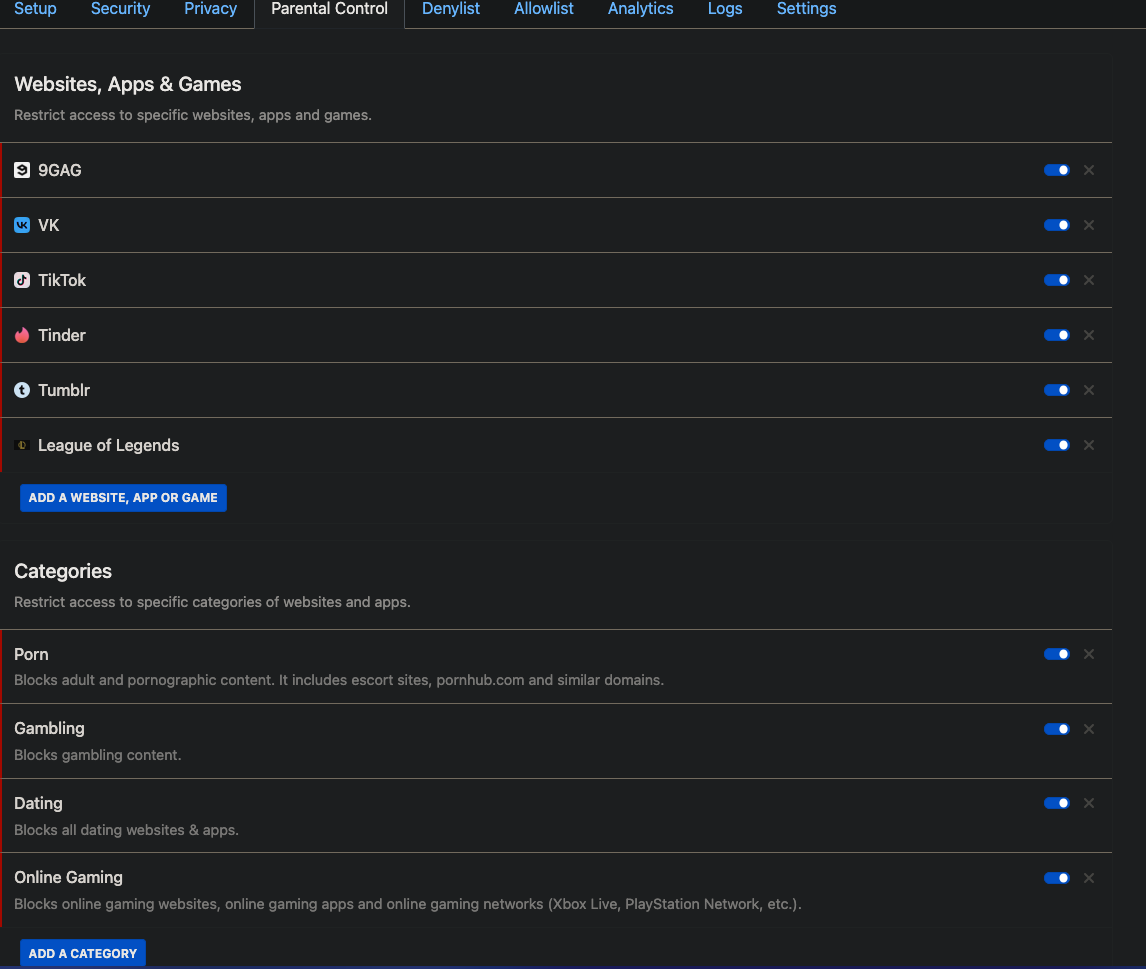
Figure 4: Parental control blocking
Allowlist and Denylist
The Allowlist and Denylist are lists that override the parental control and privacy settings. I ended up having to add many media distribution domains and other things to the allowlist when I found that sites were not loading corrrectly. For instance, one day I was going to go grocery shopping and I wanted to check a flyer for my local Albertsons. THe following image is what an Albertsons flyer is suppsoed to look like.

Figure 5: A typical flyer for Albertsons.
Instead of looking like this, the flyer that would load had infinitely loading squares. This was definitely wrong. I ended up checking ChatGPT and it told me that there were several domains that I should unblockAmong them were the domains in the following image.
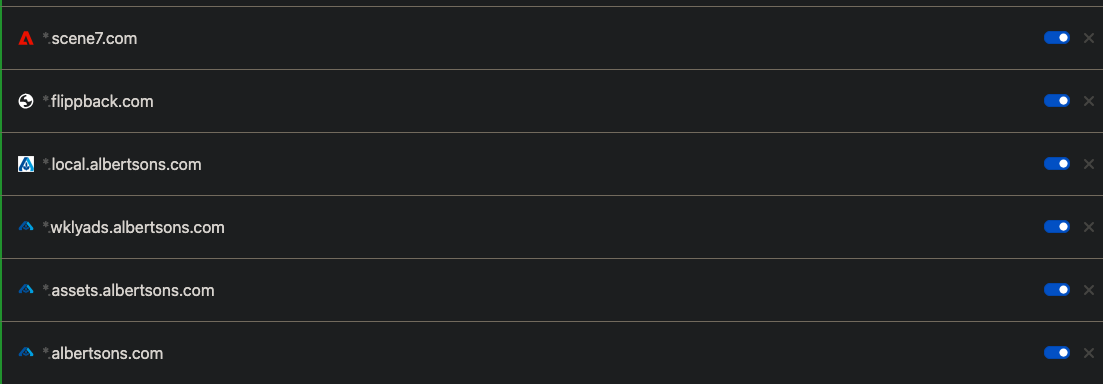
Figure 6: Albertsons whitelisted domains
I had to do the same thing for Discord, some other grocery stores that I shop at, Duolingo, and some trackers to ActualTech Media and some surveys I take on a regular basis.
Overall, it was an educational experience to be able to override the settings of certain blockings in my blocklists.
Analytics and Logs
The Analytics and Logs sections of the NextDNS dashboard show you the appropriate statistics of the usage and blocking. The Analytics section has a dashboard of all of the most common allowed connections as well as the most common connections denied. It also shows what the block reason of a certain site is. The picture below shows my example.
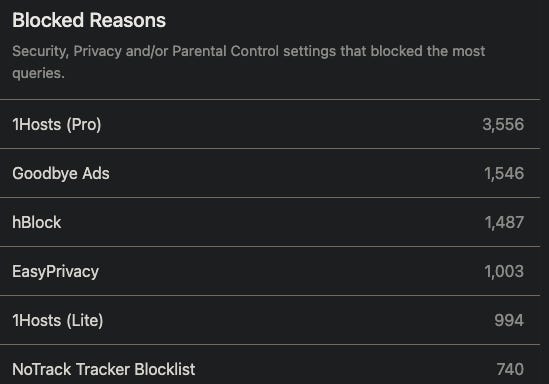
Figure 7: Block reasons.
Apart from what’s already mentioned, there is also areas for all of the IPs that are used, the root domains connected to a map of the connections made, and some other things. I was fascinated by the map. It showed connections to servers concentrated in the western part of the world. I saw connections to Ukraine and Australia as some of the only ones that are not in the West of the world. The following figure will show the map of where the connections went.
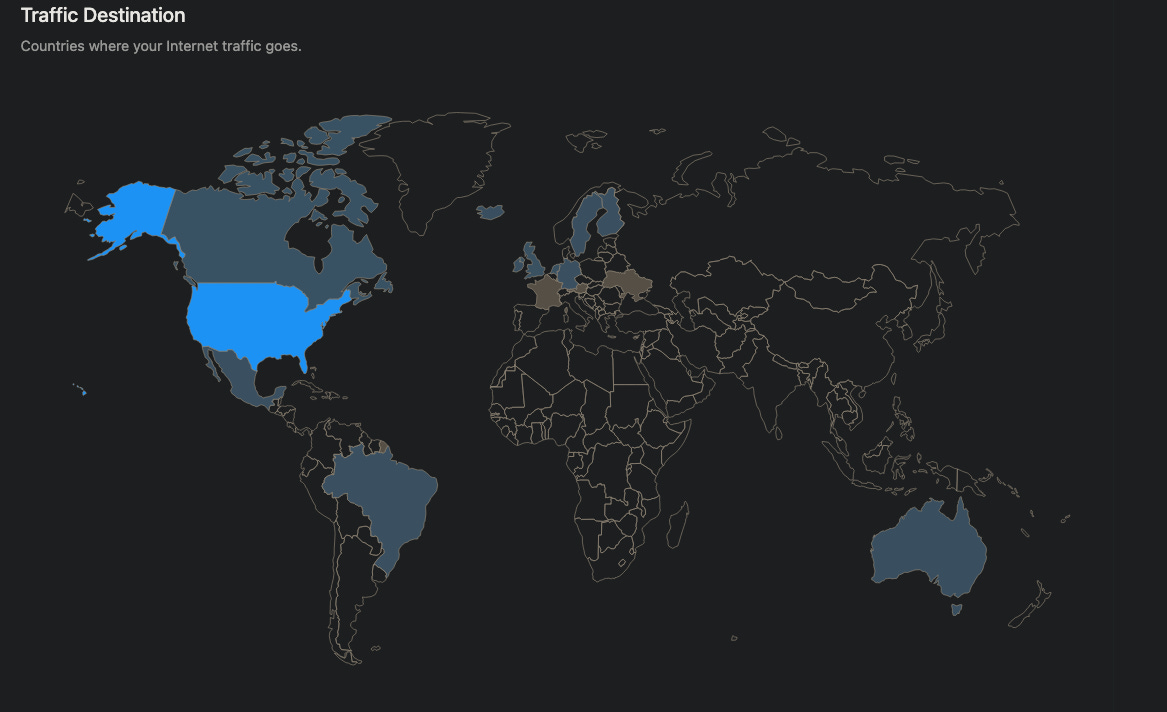
Figure 8: Conections map
As you can see from this map. the greatest concentration of connections go to the US, while Ukraine, France and Austria have by far the least. All of the other countries are somewhere in the middle.
When it comes to the logs area of NextDNS, this area simply shows a detailed log of all connections. There are two ways log entries are listed. The first way an entry can be listed is with a red bar. This means that it is blocked. A list entry with no red bar is a site that NextDNS allowed a connection to happen with.

Figure 9: Blocked vs unbloked
Setup on Mac, Phones and Other Devices
Setting up NextDNS is simple to do on most computers and phones. All that one has to do is go into that device’s DNS resolution settings and add a custom DNS resolver to the list. One may either use the IP address or the full domain (<ID>.dns.nextdns.io) to be able to connect to the NextDNS instance.
On Mac and iOS devices this setup is slightly different, rewuiring the user to go to apple.nextdns.io and download a profile from there. Once the profile is downloaded, the user wil click the profile and go to the settings app to install and trust it.A correctly installed profile will look like this.
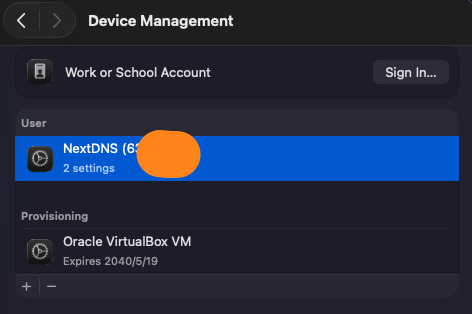
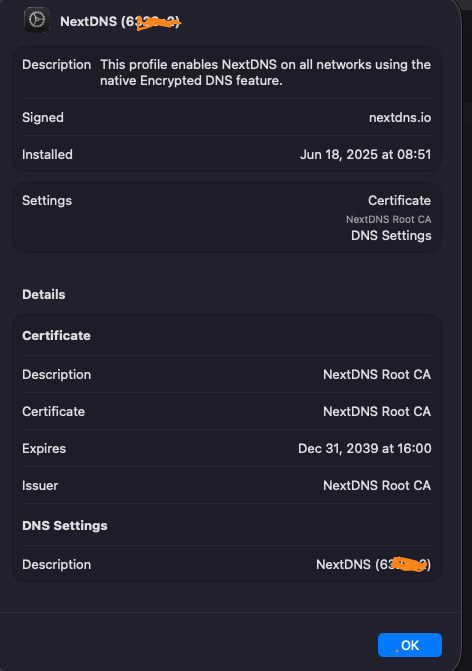
With all of this being said, the setup process of NextDNS is done!
Conclusion
In conclusion, I thought that setting up NextDNS was very rewarding. Setting up NextDNS not only gave me an opportunity to get familiar with blocklists, but it also gave me some knowledge about how some everyday sites use a great deal of content distribution networks (CDNs) to distribute the useful content I see. I also learned that NextDNS is much simpler to manage and troubleshoot than I had originally expected.
In the future, I hope to set this up across my home network. I will document those steps here and also put some of that on my YouTube channel.
With that out of the way, I hope you enjoyed this post. If you did, like and share qith your friends. Untill next time, this has been Matt of Forensics with Matt, talking about NextDNS setup and configuration. Matt OUT!