
iOS 26 is On Location With More AI Goodness iOS 26 New Artifacts II
A comprehensive look at new iOS Apple Intelligencs and Maps Artifacts

Hello Internet, Matt here from Forensics with Matt. In this week’s post, I will be coming at you with more new artifacts found in the new iOS 26. This time we’ll be covering the new artifacts for Siri including live translations and Apple Intelligence translations. We will also cover the new maps artifacts. I hope you’re ready to travel there.
Before that, I have to mention one thing: there will be no video this week, if you’re clamoring for one. This is because I need more time to carefully develop one on embedded artifacts in the iOS contexts. I should have a video ready in the next two weeks on that topic.
Let’s get into the main topic of this post ASAP, «Hey Siri, roll new bold heading.»
Apple Intelligence Features
I am impressed that Apple did this. Although this is a feature that the new Airpods have, which we are not covering here, we will be discussing only the iPhone version of it. That being said, this feature is also able to be paired with the new call recording feature that is also part of iOS 18 and 26. Translations will only be saved if you are recording calls.
Whereas call translation is something that makes calls more understandable to people, the new visual intelligence features (that remind me of Google Gemini commercials) allow more quick research of information. The whole part that reminds me of the Gemini commercials is the visual lookup where the user can draw on the screen to search from the things shown there.
When it comes to the AI Parts of this visual lookup in the Apple Intelligence is that the phone can make queries to Chat GPT. One way to use this feature is to take a picture and ask it a question about the picture. Figure 1 shows an example where Chris Vance took a picture of his phone case and asked the AI for info about it.
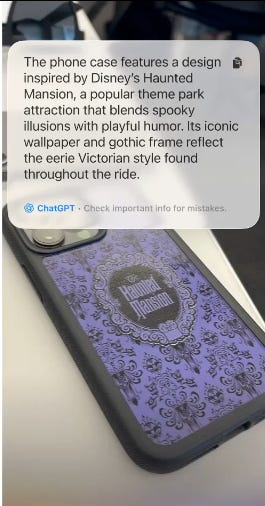
Figure 1: Visual lookup.
Yet another Apple Intelligence feature Apple gave to us in iOS 26 is call screening. It must have the most awesome elevator pitch which is something like “do you hate answering the phone for unknown numbers? With this new call screening feature, you can see what the callers behind those unknown numbers and choose if you want to answer or not.” I would enjoy having that feature to use for myself so I can be double sure I am answering the right unknown numbers and I can easily block out the unknown numbers that I don’t want.
You may wonder how this works if you haven’t seen it. It works as if they’re leaving you a voicemail which you can accept ore reject. If you accept their call, they can call you again and allow them to call you.
Image Playground is also a thing. I always ignore that on my own phone (and even delete it)
We’ll come back and mention all of the artifact locations after I talk about the other new ones: the Preview app and the new Maps features.
Previews: That One PDF Reader From the Mac…
I, like many other people, did not expect for Apple to add the Preview app to iOS 26. I am sure many others didn’t either. With this new Previews app, we can create documents and view our documents that we have saved on our devices. We can also create documents by pasting from our clipboard and our pictures too.
Anything that we make with the Preview app will be saved on your device and shared with your iCloud drive, if you have that syncing. Preview can also be used as a default app for opening certain documents, which is a cool thing.
New Ways of Representing Things on the Map
Maps has new features in the realm of “Visited Places”. This area is meant to track places that one visits. These places are not always normal places. According to Chris, sometimes there is a house or other known location in there, but most of the time there are businesses in the table for this.
With that being said, let’s get on into the artifact locations!
Apple Intelligence Locations
The Apple Intelligence artifacts are stored in some choice SEGB files in the Biome directory
/private/var/mobile/Library/Biome/streams/restricted/IntelligenceFlow.Transcript.Datastream
This path allows us to see the original image that was taken for Visual Intelligence. It also stores the photo that is taken. Within this file, you can pick out the data by finding the visualintelligenceimage in the JSON. This data is in the standard ISO format for Base64 URLs. Just know that.
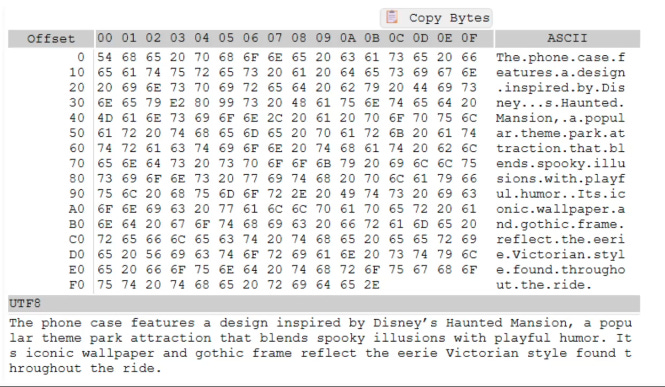
Figure 2: Visual intelligence prompt
Call Screening Forensics
When it comes to the new call screening voicemails, their location is in the application support for the FaceTime voicemails.
Previews
Data for previews is stored at /private/var/mobile/Library/Mobile Documents/com~apple~Preview/Documents. It is also synced to iCloud because it’s in the same location that iCloud documentd live/. This is a very interesting way of doing it because you’d get to see all of the iCloud documents, but that’s also what makes it a bit of a difficult one. That makes it so you have to be careful and document what the source of thee document is very well, you are looking for the com.apple.preview specifier.
Apple Image Playground
With the new features in Image Playground, we can now create inages and emojis using ChatGPT functions. It’s in private/var/mobile/Library/Biome/streams/restricted/GenerativeExperience.GenerativeImageFeatures.UserInteraction. As is apparent from the name of the file location, this info is stored in the SEGB data. The very interesting thing about this data is that it embeds HEIC data into the SEGB, cool, I know!
Additionally, if the user interacted with the chat features an HEIC image is stored within the SEGB file at private/var/mobile/Library/Biome/streams/restricted/Feedback.TextToImageEvaluationData. This JSON data contains the prompt for the data and user style of the picture that was generated. It also has an embedded picture.
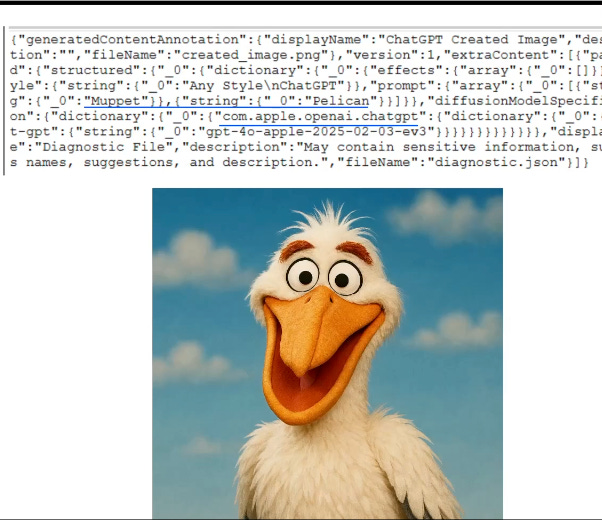
Figure 3: Data pulled from Feedback.TextToImageEvaluationData Biome file.
Maps Places Visited Artifact
Last, but not least, we hae the location of the Places Visited artifact. This comes to us all of the way from /private/var/mobile/Containers/Shared/[app_group]/Maps/Maps_Sync_001. The nice thing about this artifact is that it comes to us as part of a SQLite database. This data is found exclusively in the ZVISITEDLOCATION table in this database. Figure 4 shows a picture of what this looks like.
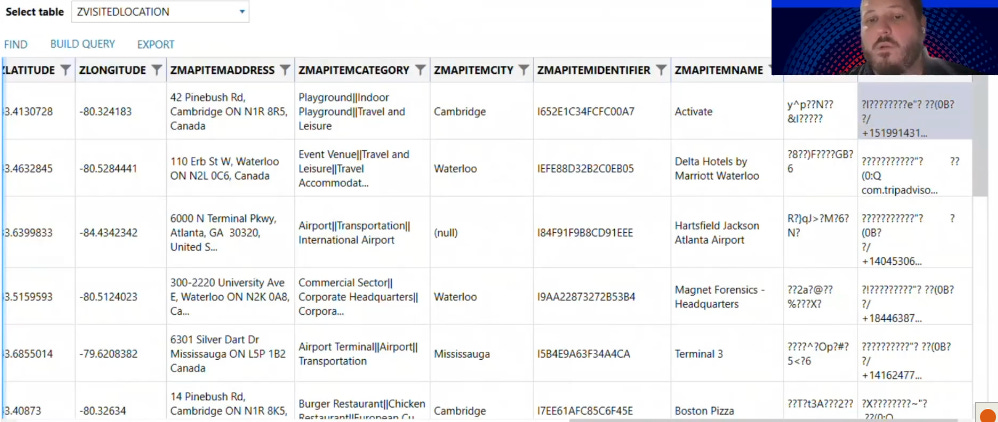
Figure 4: The ZVISITEDLOCATION table in Maps_Sync_001.
According to Chris (and subject to further testing), this database usually stores addresses locations that align with businesses and other commercial locations. It very infrequently stores data about people’s houses or other places of residence. This is a great topic for a research base to show the limitations and storage policy of the database.
And that’s a wrap. I don’t have much else to say about these artifacts. It’s a good time as ever to wrap this up and give some final thoughts
Final Thoughts
The 1-hour presentation by Chris Vance was a fun one that was filled with great memes, puns and (as he put it) “old with lower back pain” references. It was a great hour with equally amazing artifact and cultural history lessons. I can’t wait until the next one, where I’ll get to learn more about a different topic in digital forensics.
I am glad I got this information and was able to share it with you. I hope you had a good time reading this post and the previous one that this one continued. I really want to do a series on “The Whimsical World of the Windows Registry” and something about Mac stuff too. Be looking forward to those in the near future. Other than that, this has been a good post, so I have to finish with the usual thing. This has been Matt from Forensics with Matt, talking about iOS 26 forensic artifacts. Until Next time, Matt OUT!