
DaVinci Resolve, Linux and Forensics
How to get DaVinci Resolve on Linux and why it's useful for forensics professionals

Hello World, this blog is a personal project that documents all of the cool things I do with my tech things at work and at play in my personal time. Because of this, it will continue to be free for anyone who might discover it. Some of the things documented here might be quite expensive for me to fund (like AI things and buying new hardware to test and document) and I’d like to subsidize it a little bit with this newsletter.
Please consider becoming a paid reader by donating via Stripe or buymeacoffee. Financial support will do a great job at helping subsidize small projects and will ensure you get better content in the future. I’m sure you will be satisfied with your decision to support this blog.
Hello Internet, Matt here coming to you with another post. In this week’s post, I will be discussing how to get DaVinci Resolve onto AlmaLinux with the AlmaLinux Creative Installer. This is significantly easier than the process that you’d have to follow if you were working on non-Red Hat systems. It also should take significantly less time than troubleshooting on a non-Red Hat system.
If you are interested in this process, be my guest and keep on reading this post. I’m sure that you will find the info you need to get up and running quickly.
Let’s get into this!
Starting Out and Doing the Main Work
Before we begin, if you are on any other system than an X86 system, you will be out of luxk on this post. As of writing this, DaVinci is specifically designed for Rocky Linux on X86. Since both of these system types are based on RedHat Enterprise Linux (RHEL), their binaries won’t require any magic to port between one another. That’ll make it easy for us to get our program on both without any software like distrobox or emulation.
Here’s a video I made for this topic if you prefer to see what I’m doing instead of reading about it.
Now, for those who are reading about my process, you can continue on and get some slightly more detail and resolve some of the issues that I originally had.
To begin with what I did to initiate the process, I installed the Creative Installer. I showed how that worked in the previous post.
The start of this process begins with having the Creative Installer installed. You can find this by going through the AlmaLinux website. It is as easy as two steps.
sudo dnf copr enable tristantheroux/AlmaLinux-Creative-Installer
sudo dnf install almalinux-creative-installer
These two commands will give you the repo and the installer in its latest version.
Once you install it, make sure all of the repositories are installed and active on your system. Once you have everything, you can start with adding the NVIDIA drivers. NVIDIA drivers have their own dedicated button, as you can see below.

After you do that, you can move on to the app. Click the “install” button all of the way at the bottom to download DaVInci Resolve, as seen below. Make sure to change your SELinux policy to ‘permissive: temporary’ after clicking the install button for it to proceed. After you do that, you can move forward with the real install process.
The install process will open a file browser and your default browser to the DaVinci Resolve page. On the DaVinci Resolve page, you should go all of the way down to the bottom and stop when you see the install buttons, as shown below.
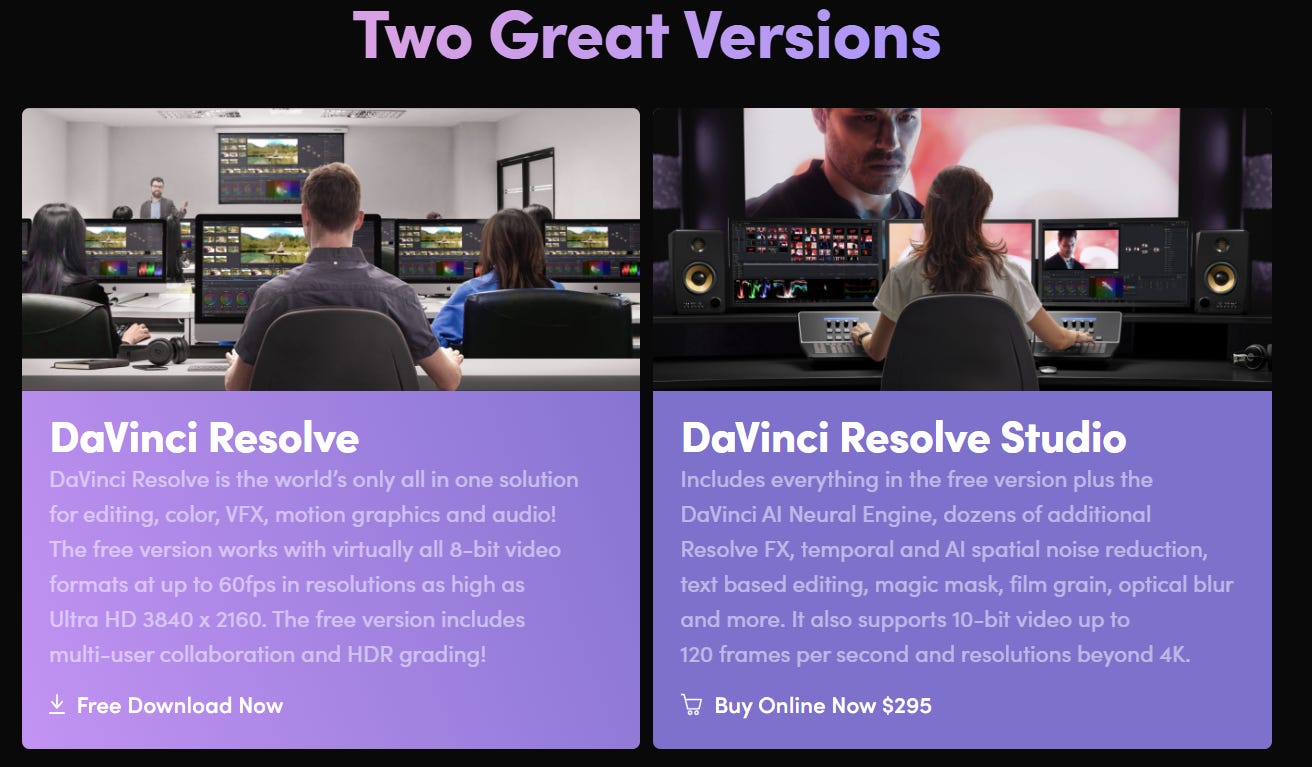
Click Linux in the next popup and fill in your information on the following page. It’ll download a zip file. It is large, so you might have to wait a while.

After it finishes, extract it and go back to the file browser. Select the .run file contained in the extracted folder. This will open the installer that you need to install the program.
Accept the licenses and click next as many times as needed.
Once you’re done and the program is completely installed, open the program to make sure everything is installed correctly. If everything is installed well, you should be able to open it well and it should also detect a graphics card and anything else it needs to. If not check out the following video and see if it helps. There are other tutorials on doing this out there as well. If this doesn’t help, feel free to refer to another one.
Why Did I Do This?
I chose to add this to my lab system because it’s my video editor of choice. It has served me well for making videos on this channel for over two years now. It has a great workflow for both editing videos and tweaking sound if necessary. That is why I did this.
Why Would You Do This As a Forensic Analyst?
You might not want to do this as a a forensic analyst, or maybe you would. One reason why you would is to be able to compile videos of disparate footage to make cohesive timelines. I think that is one reason I’d include this on a forensic machine is just for the pure ability to create tutorials on some of the work I do to document the process for those unfamiliar with it.
You may also want to do the same.
I don’t deal with things like bodycam footage, large CCTV footage, or other large filetypes, this editor might be a great option to trim this footage down to a size that is useful to the court. This, just like a formal report for other things, is a great thing for getting the useful and relevant information from videos for court. This increases some greater coherency between what we are discussing in court and the video evidence that we have.
Creative tools operate as analytical extensions.
Why I Chose an Enterprise Linux Distro
I chose AlmaLinux, an entrprise Linux distribution because it has a long support cycle. It’s like the Windows of Linux, in that it has a very long (10 year) support cycle. This means that my system will be current until 2035. At that point, I’ll have to upgrade to version 11, 12, or even 13 to continue to receive support.
Realistically, I’ll probably reimage every couple of years or so because I don’t want to worry about package issues if I decide I want to do an in-place upgrade when a new OS version comes out. This something I’d like to have more than a flashy distro that’s new and constantly updated to the 100% latest packages as soon as they’re avalable since this could cause dependency issues or impact stability in a noticeable way.
I’m sure you’d feel the same way about an operating system for your lab.
Conclusion
In conclusion, installing DaVinci Resolve on AlmaLinux is fairly trivial. It can be easily done with the AlmaLinux Creative installer, which is what I used to do it. Be sure to update the drivers for your graphics card and everything else for the best experience.
If you enjoyed this post, make sure to like, comment, subscribe and share it however you can.
Until next time, Matt OUT!